Ever posted something on LinkedIn and felt like it went straight into the void?
That used to be me. I was showing up consistently, writing posts I thought had value (good structure, clean visuals, relevant insights) but my reach was barely moving.
A couple likes, maybe a polite comment or two. Nothing close to what I expected based on the effort I was putting in.
Turns out, I wasn’t alone. LinkedIn has over 310 million monthly active users, but the average engagement rate per post hovers between just 2.8% and 3.85%.
Most users scroll silently. And unless your content grabs attention fast, it just disappears into the feed.
That’s when a friend (who’s way more tech-savvy than I am) mentioned something I’d never considered: using invisible characters on LinkedIn. I’d never heard of them.
I tried that trick. The difference was immediate.
In this post, I’ll break down exactly how invisible characters on LinkedIn can change the way your content performs. You’ll see what they are, how they work, where to find them, and how to use them without hurting your visibility or formatting.
Let’s get into it.
When Low Visibility on LinkedIn Becomes a Problem
BefHave you ever posted something on LinkedIn and feel like it just… vanishes?
Like, you hit publish, and then silence. No reactions, no comments, nothing. It’s frustrating, especially when you know the post was solid.
Here’s what a lot of people don’t realize: LinkedIn only shows the first 210–220 characters of your post before cutting it off with a “see more” link.
And if someone’s on mobile? They only see the first 140. That means you’ve got a sentence (maybe two) to make someone stop scrolling.
If your hook is buried under a block of text, people won’t even give it a chance.
And engagement? Yeah, it’s rough. In 2026, the average engagement rate on LinkedIn is around 3.85%, depending on what you’re posting and who’s following you.
That means the majority of users are just scrolling. Watching silently.
So, if the top of your post doesn’t catch attention and look easy to read, most people won’t even open it. And once that happens, the algorithm just shrugs and moves on.
This is where formatting matters way more than people think. A strong hook + a clean visual break = way more chances someone actually sticks around.
And that’s where invisible characters come in. Let’s talk about what they are and why they work.
Invisible Characters: How Do They Work?
Invisible characters look like blank space, but they’re technically characters; just ones you can’t see.
You can’t type them with a regular keyboard, and they don’t show up visually in your post. But LinkedIn still reads them as part of the text.
That’s what makes them useful.
There are a few types out there, like:
- Zero-width space.
- Non-breaking space.
- Zero-width non-joiner.
They’re usually used to format text behind the scenes, think of spacing or layout tricks.
But here’s the part most people overlook: these little invisible tweaks can actually help you format your LinkedIn posts in a way that makes them way easier to read.
Creators use them to add clean line breaks right after their hook, especially within those first 140–210 characters that show before the “see more” link. That way, your main idea stands on its own instead of being crammed into a block of text.
It’s a small move. But when most users scroll fast and engagement is already low, clean formatting gives your post a better shot at getting noticed.
Meet the Invisible Character Trick That Boosted Our Reach
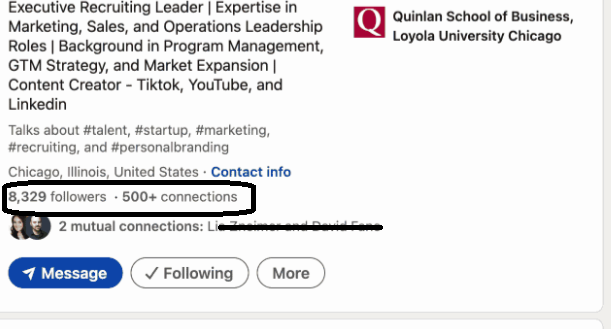
Things really shifted when I tried invisible characters in a way I hadn’t seen before: inside comments.
I started dropping blank comments on other people’s posts. Literally just an invisible character. No text. No emojis. Just empty space that wasn’t actually empty.
It stood out instantly. People got curious. They clicked to expand the comment, checked who posted it, and a surprising number of them ended up on my profile. It sounds almost too simple, but that small move created just enough intrigue to spark engagement.
But there’s more to it than curiosity. Commenting consistently on other users’ posts already helps you show up in more feeds. Combine that with a format that interrupts the usual scroll, and suddenly your visibility starts to snowball.
Within a few weeks, I saw a clear jump in profile views and overall post performance. No fancy tools, just a copy-paste trick that made people pause for a second longer.
Where to Get Invisible Characters
This might be the part you’ve been waiting for, since everything we’ve talked about hinges on this. Like I mentioned earlier, invisible characters aren’t available on your standard keyboard.
So, you’ll need to grab them from somewhere else.
Luckily, there are free tools online that make it super easy to copy these characters anytime you need them:
Invisible Character Tool by PrepostSEO
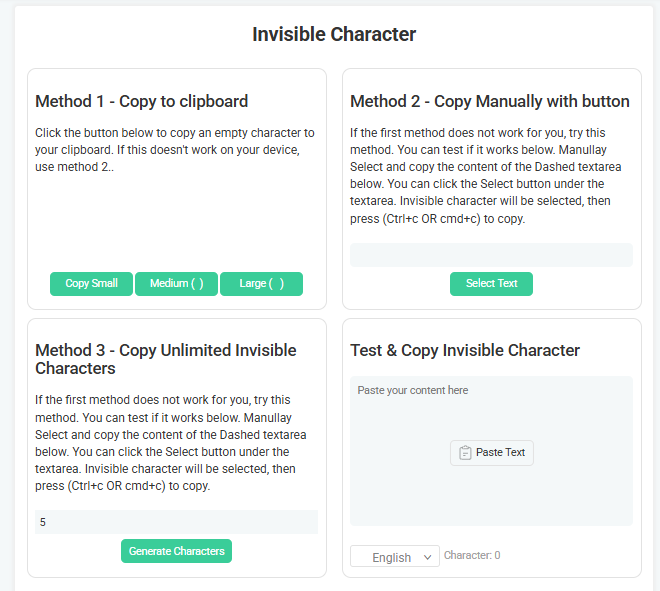
Link: prepostseo.com/invisible-character
This is one of my go-to tools when I need blank space for LinkedIn. The layout is clean, and it’s really easy to use.
It gives you three different methods for copying invisible characters. Each one works a bit differently, and Method 3 lets you choose how many characters you want by entering a number in the box.
Here’s how to copy them:
- Pick a method
- Click the “copy” button
That’s it. To paste the invisible character, just double-tap the text field on your phone and select “Paste.”
On desktop or Mac, right-click and hit “Paste,” or use the shortcut Ctrl+V (Cmd+V on Mac).
Invisible-character.net
Link: invisible-character.net
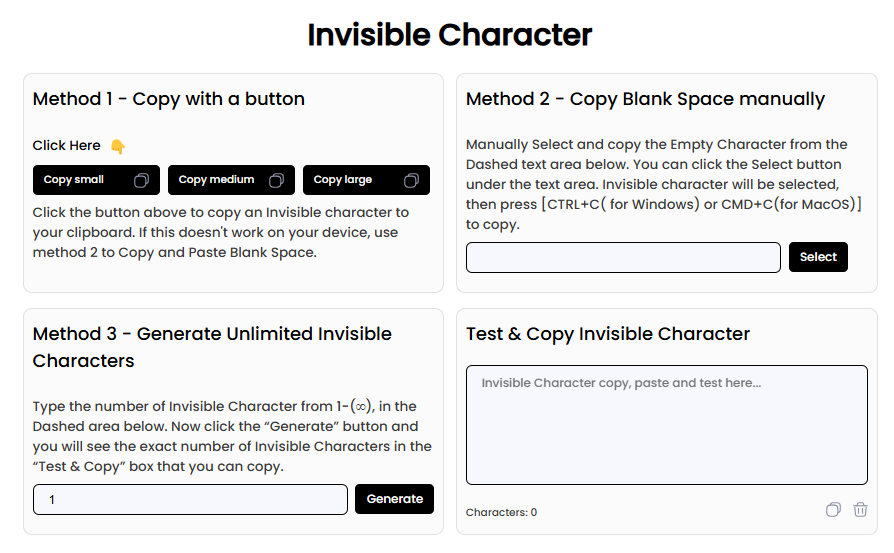
This is another handy tool I’ve used to get invisible characters quickly. It also has a feature that helps you check if the blank space was actually copied, which is surprisingly useful.
Same process here:
- Choose a method.
- Hit the “copy” button.
In Method 1, you can even choose between small, medium, or large invisible spaces. That helps if you don’t want to copy the same thing over and over.
Once copied, just paste them wherever you need:
On desktop or Mac: right-click and select “Paste” or use Ctrl+V / Cmd+V.).
On mobile: double-tap the text field and tap “Paste”.
Best Practices for Adding Invisible Characters on Your LinkedIn
Invisible characters aren’t a magic trick. But when used right, they help your content stand out without looking forced.
Here’s how to make them work without making it weird:
- Use them for clean line breaks in posts: Drop invisible characters between paragraphs to avoid chunky walls of text. It makes your content easier to scan, especially on mobile.
- Format comments so they’re easier to read: If you’re writing a longer reply, use invisible characters to create small breaks. It helps your comment stand out in crowded threads.
- Try the blank comment trick (in moderation): Posting an empty comment can trigger curiosity, but don’t overdo it. Too many and you risk looking spammy.
Now, if you’re wondering whether this formatting stuff actually makes a difference. The data shared by FidForward backs it up:
- Well-formatted LinkedIn posts get 300% more engagement than plain text walls.
- Structuring content properly increases read-through rates by 40%, and adding visual breaks can lift mobile engagement by 200%.
- One heads-up: Unicode text isn’t searchable on LinkedIn. The platform’s algorithm can’t index some of these invisible formats, so use them for layout.
So, if you’re going to use invisible characters, treat them like formatting tools. Not as shortcuts.
Use them with intention, keep your layout clean, and focus on making your content easier to read. That’s what gets people to stick around.
Bottom Line: Use Invisible Characters on LinkedIn Without Overdoing It
I’m not trying to trick the algorithm. Actually, I just wanted my posts to look cleaner and actually get seen.
Using invisible characters helped me format my content the way I wanted. Breaking up big chunks of text, giving my hook space to breathe, and making sure the message didn’t get lost in the scroll.
It wasn’t some huge strategy shift. Just a small tweak that made people stop, read, and sometimes even reply.
If you’ve been putting effort into LinkedIn but not seeing much in return, it might not be what you’re saying. It might just be how it looks.
So, give invisible characters a shot. You don’t have to change everything. Just copy, paste, and see what happens.
FAQs
What are invisible characters on LinkedIn?
They’re blank characters that don’t show up visually, but LinkedIn still recognizes them as part of the text. Think of them as invisible formatting tools.
Why would someone use invisible characters in a LinkedIn post?
To create clean line breaks, isolate hooks, and make posts easier to read. Especially in the first 140–210 characters that show before the “See more” cut.
Can using invisible characters get me penalized by LinkedIn?
No, not if you use them sparingly and for formatting. But spamming them (like flooding comments) could look suspicious. Just keep it human, without tricks that would raise flags under LinkedIn’s privacy policy.
Do invisible characters affect LinkedIn search or SEO?
Yes. LinkedIn can’t index some Unicode characters, so they shouldn’t be used in places where keywords matter. Plus, formatted text may behave differently depending on how LinkedIn applies things like its cookie policy across sessions.
Can I use this trick in LinkedIn articles or newsletters too?
It’s mostly helpful for short-form posts in the feed. Articles and newsletters already let you format more freely.